


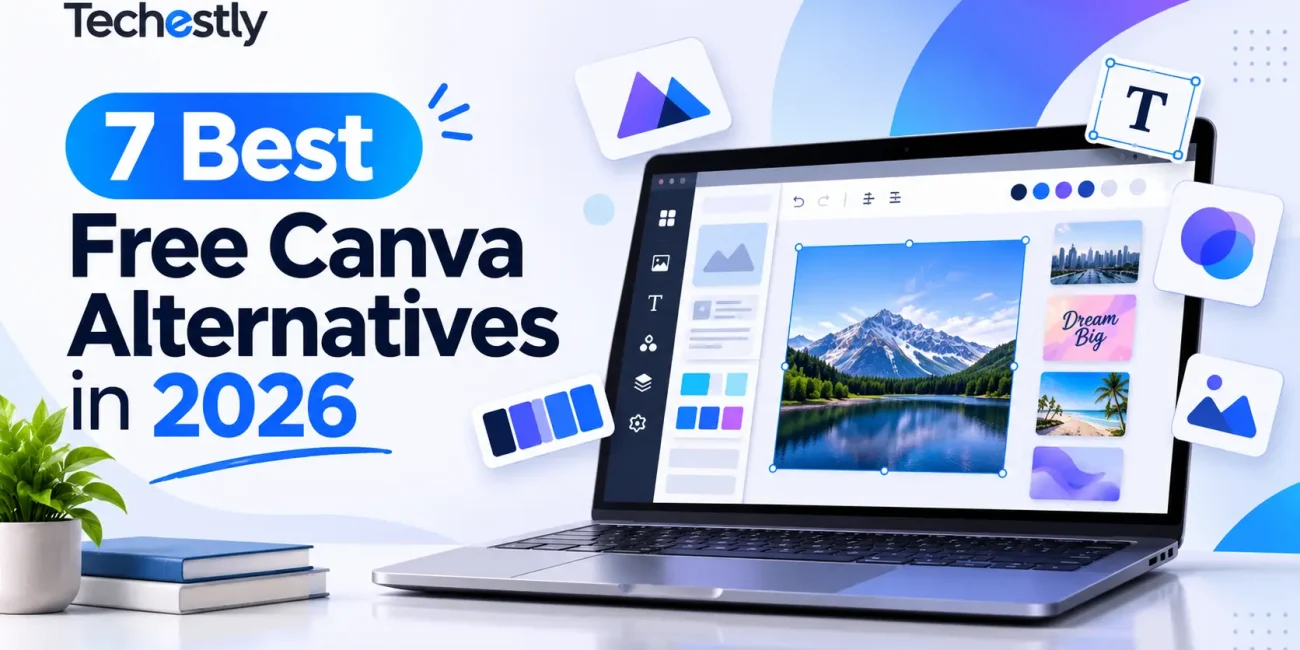
Canva makes it easy to create social media graphics, presentations, flyers, posters, and marketing materials without professional design experience. However, its free plan may not include every feature, template, or asset that users need.
Some people want more control over photo editing, while others need better tools for logo design, vector graphics, or collaborative projects. Fortunately, several free design platforms offer useful alternatives for different types of creative work.
In this guide, we compare seven free Canva alternatives in 2026. We look at their main features, free-plan availability, advantages, limitations, and the types of users who may benefit from each tool.
Quick Comparison: Free Canva Alternatives
| Software | Best For | Free Version |
|---|---|---|
| Adobe Express | Social media graphics and templates | Yes |
| VistaCreate | Marketing and promotional designs | Yes |
| Figma | UI and collaborative design | Yes |
| Photopea | Browser-based photo editing | Yes |
| GIMP | Advanced image editing | Yes |
| Inkscape | Logos and vector graphics | Yes |
| Microsoft Designer | AI-powered graphic creation | Yes, with usage limits |
Free plans can have restrictions on premium assets, storage, AI credits, or collaboration. Check the provider’s current plan details before choosing a tool.
1. Adobe Express
Best for: Social media graphics and everyday marketing designs
Adobe Express is one of the closest alternatives to Canva for people who regularly create visual content. It provides ready-made templates and editing tools for social media posts, flyers, presentations, videos, and other marketing materials.
The free plan includes access to a large selection of templates, Adobe Stock assets, standard editing tools, and basic content scheduling. Users can work through a web browser or supported mobile devices.
Adobe Express is particularly useful for small businesses and content creators who want to produce professional-looking designs without learning complicated design software.
Key Features:
- Ready-made templates for different design formats
- Photo, video, and document editing
- Adobe Stock photos and creative assets
- Social media content scheduling
- Browser and mobile access
Advantages:
- Beginner-friendly interface
- Good selection of design templates
- Useful tools for everyday marketing content
Limitations:
- Some premium templates and assets require a subscription
- Free access to certain AI features is limited
- Advanced creative workflows may require other Adobe products
Official website: https://www.adobe.com/express/
2. VistaCreate
Best for: Social media marketing and promotional content
VistaCreate is a template-based design platform built for creating marketing materials and visual content. It is a strong option for users who want an experience similar to Canva without immediately purchasing a premium subscription.
Its free Starter plan includes more than 100,000 design templates, creative assets, basic editing tools, and social media publishing features.
Users can create promotional graphics, advertisements, social media posts, blog visuals, and other branded materials. The platform also provides a Brand Kit for organizing basic brand colors and fonts.
Key Features:
- Large collection of design templates
- Photos, videos, and vector assets
- Social media design formats
- Basic photo and video editing
- Brand Kit and publishing tools
Advantages:
- Generous free template selection
- Suitable for small businesses and marketers
- Easy to start designing without advanced skills
Limitations:
- Some advanced tools are reserved for Pro users
- Premium creative assets require an upgrade
- Not intended to replace professional image-editing software
Official website: https://create.vista.com/
3. Figma
Best for: Website interfaces and collaborative design
Figma is different from traditional Canva-style design platforms. It focuses more on user interface design, website layouts, app interfaces, prototypes, and collaborative creative projects.
Its free Starter plan provides access to several Figma products, including Figma Design, FigJam, and Figma Slides, with limitations on team files and certain advanced features.
For example, a small team can use Figma to create website mockups, plan application screens, and share design ideas. However, someone who only wants quick social media templates may find Adobe Express or VistaCreate easier.
Key Features:
- Website and application interface design
- Interactive prototypes
- Real-time collaboration
- FigJam brainstorming tools
- Design templates and UI resources
Advantages:
- Excellent for interface design
- Useful collaboration features
- Supports structured design workflows
Limitations:
- Not a direct replacement for Canva’s template-based workflow
- Free Starter plan has file and feature restrictions
- Beginners may need time to learn its interface
Official website: https://www.figma.com/
4. Photopea
Best for: Browser-based photo editing
Photopea is an online image editor that provides many familiar photo-editing features. It is particularly useful for people who want more control over images than a basic template editor offers.
The platform supports raster and vector graphics and can handle tasks such as resizing images, editing photographs, creating illustrations, and working with layered designs.
Photopea runs directly in a web browser, so users do not need to install a traditional desktop application. It can also work with files locally on the device.
Key Features:
- Layer-based image editing
- Support for raster and vector graphics
- Photo retouching and image adjustments
- Browser-based editing
- Support for several common design file formats
Advantages:
- No traditional software installation required
- Useful for detailed image editing
- Familiar workflow for users of professional image editors
Limitations:
- Interface can be difficult for beginners
- Not focused on ready-made social media templates
- Free users may encounter advertisements
Official website: https://www.photopea.com/
5. GIMP
Best for: Advanced photo editing and image manipulation
GIMP, short for GNU Image Manipulation Program, is a free and open-source image editor available for Windows, macOS, and Linux.
Unlike Canva, which emphasizes templates and quick content creation, GIMP offers more detailed control over image editing. Users can retouch photographs, create composites, edit graphics, and produce original artwork.
It is suitable for users who want powerful editing tools without paying for a professional image-editing subscription.
Key Features:
- Advanced photo manipulation
- Layer-based editing
- Image retouching and restoration
- Customizable interface
- Third-party plugins and extensions
Advantages:
- Free and open-source
- Available across major desktop operating systems
- Suitable for detailed image editing
Limitations:
- Requires installation
- Has a steeper learning curve than Canva
- Does not provide the same ready-made template experience
Official website: https://www.gimp.org/
6. Inkscape
Best for: Logos, icons, and vector graphics
Inkscape is a free and open-source vector graphics editor. It is a useful alternative for designers who need to create scalable graphics rather than ordinary image-based designs.
It supports SVG as its native format and provides tools for illustrations, diagrams, icons, logos, and web graphics.
Unlike Canva, Inkscape is more focused on precise vector editing. This makes it particularly useful for users who want to create graphics that can be resized without losing quality.
Key Features:
- Vector illustration tools
- SVG file support
- Logo and icon creation
- Object and path editing
- Drawing and text tools
Advantages:
- Completely free and open-source
- Suitable for professional vector workflows
- Works on Windows, macOS, and Linux
Limitations:
- Not designed for quick template-based content
- Beginners may need tutorials to understand its tools
- Requires desktop installation
Official website: https://inkscape.org/
7. Microsoft Designer
Best for: AI-powered graphics and quick creative ideas
Microsoft Designer is an AI-assisted design platform that helps users create images and visual content using text prompts and editing tools.
It can be useful when someone has an idea for a social media graphic, invitation, greeting card, or other visual but does not want to build everything manually.
Microsoft provides free access to Designer, although some AI features have usage limits and more frequent use may require a subscription.
Key Features:
- AI-assisted image generation
- Social media graphics and invitations
- Image editing and background removal
- Design resizing and text tools
- Integration with Microsoft services
Advantages:
- Helpful for generating creative ideas
- Easy to use for simple visual projects
- Free access is available
Limitations:
- AI usage is subject to monthly credits
- Generated images may need manual corrections
- Not a complete replacement for advanced design software
Official website: https://designer.microsoft.com/
How to Choose the Right Canva Alternative
Before choosing any software for your business, consider your budget, required features, ease of use, and long-term needs. Read our guide on how to choose business software for a small business to make a better decision. The best tool depends on the type of work you want to complete. Before switching platforms, consider the following factors:
1. Identify your design requirements
If you mainly create social media posts, choose a template-focused platform such as Adobe Express or VistaCreate. For photo manipulation, Photopea or GIMP may be more suitable.
2. Check the free-plan restrictions
Some tools provide free templates but restrict premium assets, storage, exports, or AI features. Check these limitations before moving your regular projects to a new platform.
3. Consider ease of use
Beginners may prefer browser-based tools with ready-made layouts. More advanced editors provide additional control but can take longer to learn.
4. Review export options
Make sure the software supports the file formats you need. Common formats include PNG, JPG, PDF, and SVG.
5. Think about your long-term needs
A tool that works for a personal project may not be suitable for a growing business. Consider collaboration, brand consistency, editing flexibility, and future costs.
If you are also comparing other business applications, our guide on how to choose business software for a small business explains how to evaluate features, pricing, usability, and support.
Frequently Asked Questions
What is the best free Canva alternative in 2026?
Adobe Express is one of the strongest general-purpose alternatives for template-based designs. VistaCreate is another good choice for social media graphics. The best option depends on your specific requirements.
Which Canva alternative is best for beginners?
Adobe Express and VistaCreate are beginner-friendly options because they provide ready-made templates and straightforward editing tools.
Is there a free alternative to Canva without installing software?
Yes. Adobe Express, VistaCreate, Figma, Photopea, and Microsoft Designer offer browser-based access. Some features may require an account.
Which free Canva alternative is best for logo design?
Inkscape is a strong option for creating scalable vector logos. GIMP can also help with image-based graphics, while Adobe Express is useful for template-based logo concepts.
Are free Canva alternatives suitable for business use?
Many free design tools can be used for business projects, but users should check the licensing terms for individual templates, images, fonts, and other creative assets before using them commercially.
Final Thoughts
There is no single Canva alternative that is perfect for every type of design work. Adobe Express and VistaCreate are strong choices for everyday marketing graphics, while Figma is more suitable for interface design and collaboration.
Photopea and GIMP provide more control over photo editing, whereas Inkscape focuses on vector graphics. Microsoft Designer is worth considering for AI-assisted creative work.
Before choosing a platform, compare its free features, limitations, export options, and workflow. Testing two or three tools with a real project is often the easiest way to find the right fit.
Official Sources
- Adobe Express: https://www.adobe.com/express/pricing
- VistaCreate: https://support.create.vista.com/
- Figma: https://help.figma.com/
- Photopea: https://www.photopea.com/learn/
- GIMP: https://www.gimp.org/
- Inkscape: https://inkscape.org/
- Microsoft Designer: https://support.microsoft.com/en-us/designer/

Other Articles
5 Best Free Trello Alternatives in 2026
How to Choose Business Software for a Small Business